- Connect a laptop with Toolbox 3 to the vehicle. See Toolbox 3 (Connect And Disconnect) .
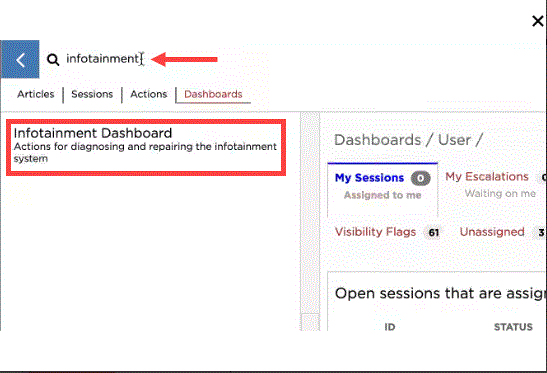
- In Toolbox, click the Dashboards
tab, type "Infotainment" into the search field, and then click on Infotainment Dashboard
.
 Courtesy of TESLA INC Courtesy of TESLA INC
|
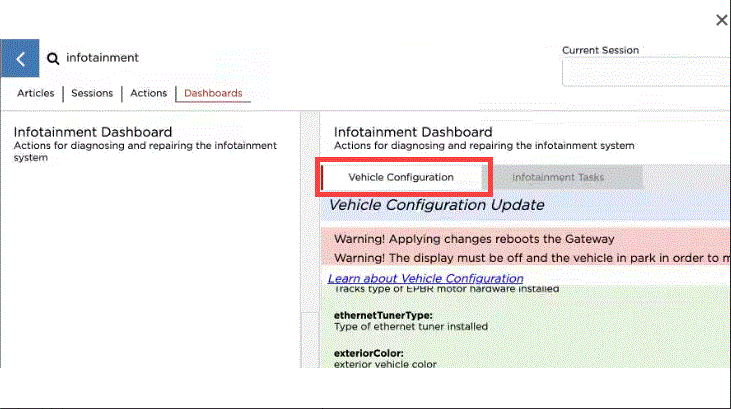
- Under Infotainment Dashboard, click the Vehicle Configuration
tab.
 Courtesy of TESLA INC Courtesy of TESLA INC
|
NOTE:
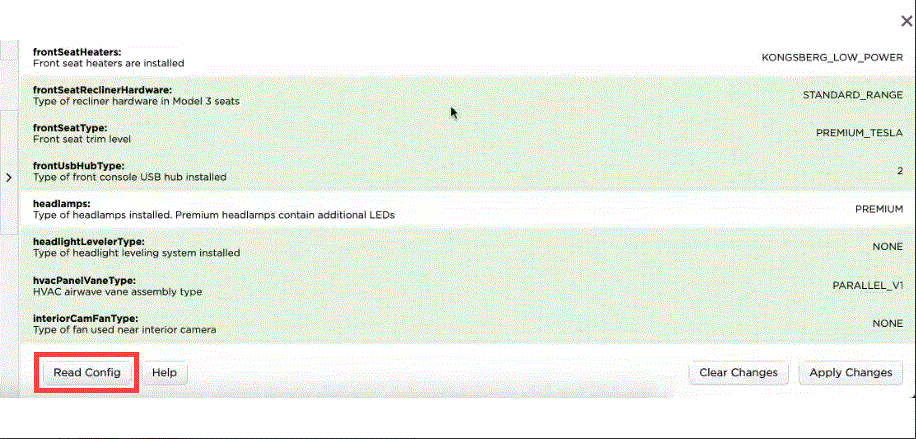
If no configuration parameter values are displayed, click Read Config
.
 Courtesy of TESLA INC Courtesy of TESLA INC
|
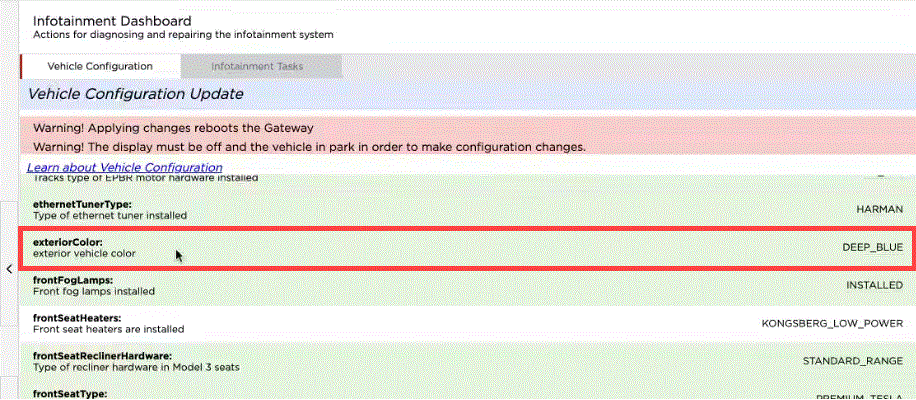
- Scroll down the list to find the parameter and its current value.
NOTE:
Parameters with a green background can be changed.
 Courtesy of TESLA INC Courtesy of TESLA INC
|
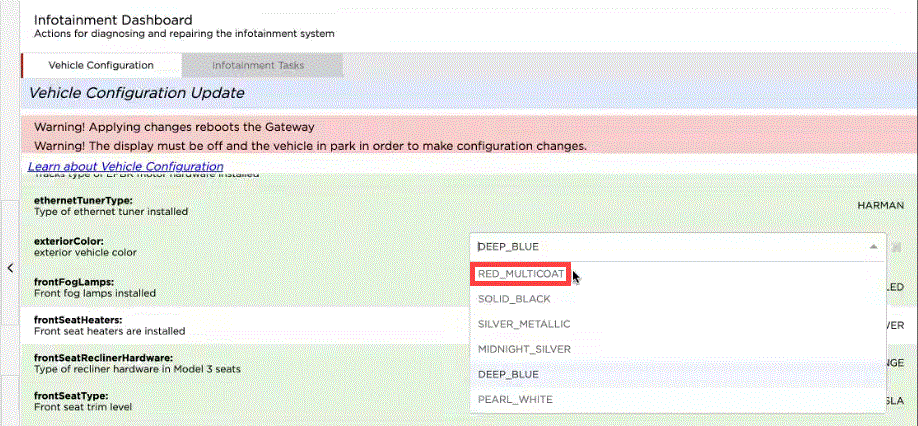
- Click on the current value, and from the drop-down menu that appears, select the new value.
 Courtesy of TESLA INC Courtesy of TESLA INC
|
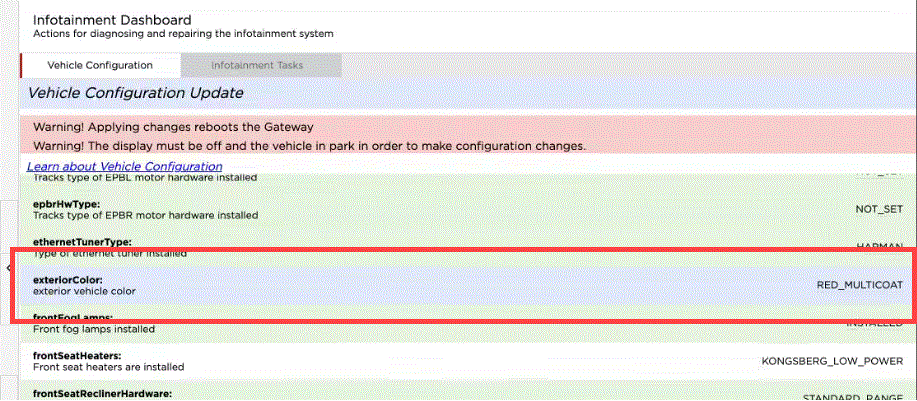
NOTE:
Once the new value is selected, the parameter background becomes blue.
 Courtesy of TESLA INC Courtesy of TESLA INC
|
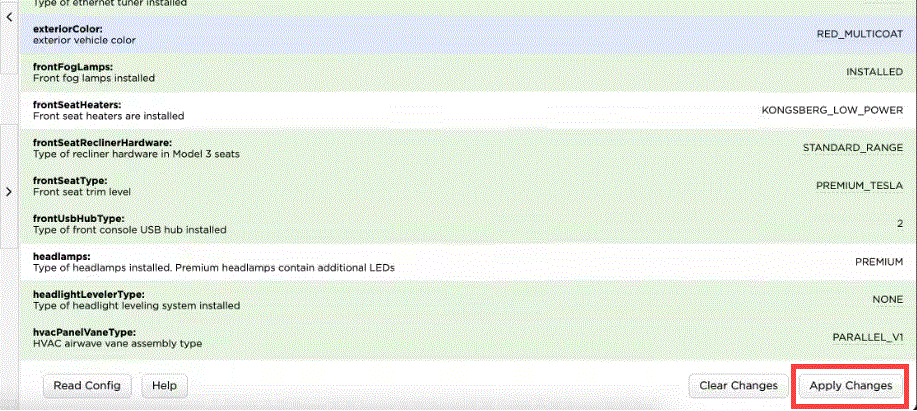
- Click Apply Changes
.
 Courtesy of TESLA INC Courtesy of TESLA INC
|
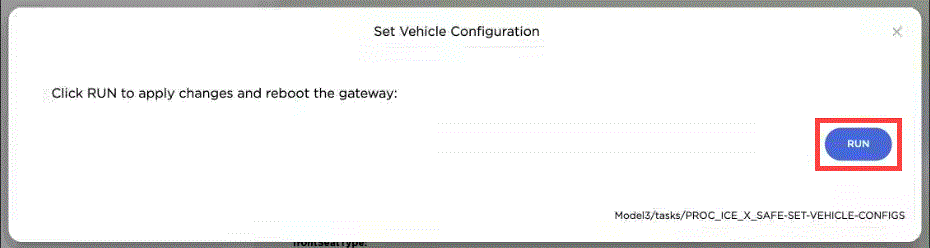
- In the new window that opens, click Run
to apply the changes and reboot the gateway.
 Courtesy of TESLA INC Courtesy of TESLA INC
|
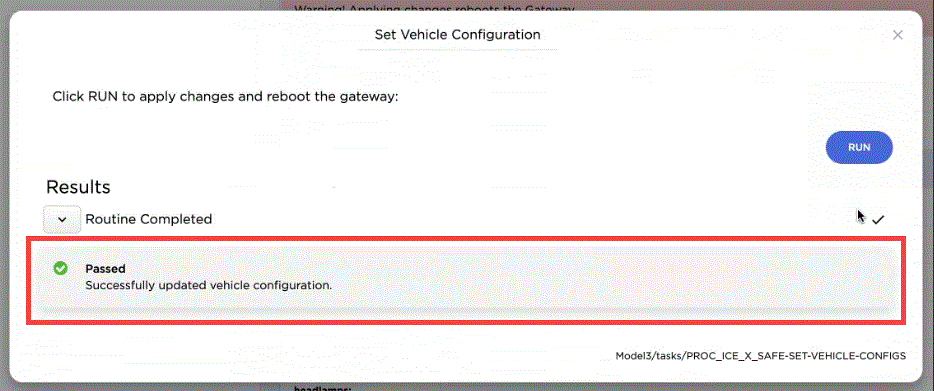
- The progress is shown, and after reboot, the window indicates a successful update to the vehicle configuration.
 Courtesy of TESLA INC Courtesy of TESLA INC
|
- If another service procedure requested verification or modification of a gateway configuration parameter, return to that procedure now. Otherwise, continue to the next step.
- Disconnect the laptop with Toolbox 3 from the vehicle. See Toolbox 3 (Connect And Disconnect) .