- Check the condition of the connectors of the ethernet interface box, and each of the connecting cables.
NOTE:
The cables and interface box might be of different lengths and colors than as shown here.
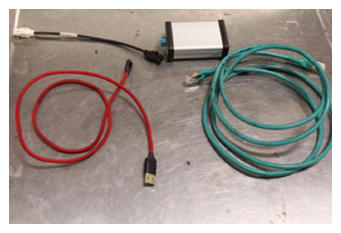 Courtesy of TESLA, INC. Courtesy of TESLA, INC.
|
- If powered off, press the brake pedal to power on the vehicle drive rails.
- If powered off, power on the laptop, and then sign in and open a web browser to the Toolbox 3 website.
- Release the clips (x4) that attach the phone dock to the center console, and carefully set the phone dock aside.
NOTE:
Pull up at the bottom of the phone dock, and then pivot out from under the instrument panel.
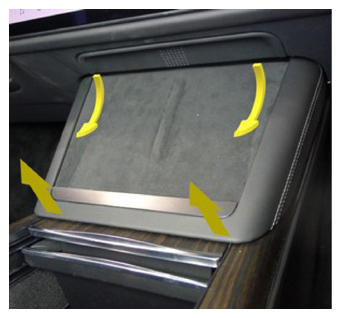 Courtesy of TESLA, INC. Courtesy of TESLA, INC.
|
- Release the tabs (x4) that attach the IP service panel to the underside of the center display, and allow the panel to rest on the center console.
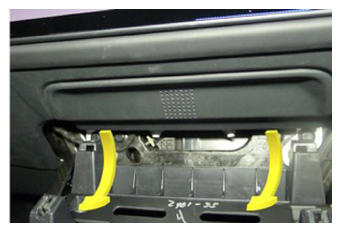 Courtesy of TESLA, INC. Courtesy of TESLA, INC.
|
- Connect to the service connector under the center display.
- If there is a small round Fakra connector:
- Connect the vehicle interface cable, the ethernet cable, and the USB cable to the interface box.
- Connect the vehicle interface cable to the Fakra connector under the center display.
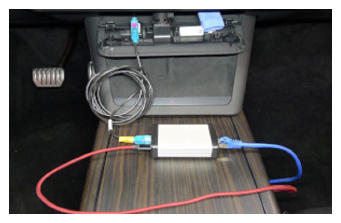 Courtesy of TESLA, INC. Courtesy of TESLA, INC.
|
- Connect the ethernet cable and USB cable to the laptop.
- If there is a small cube ethernet connector:
- Connect the ethernet cable to the ethernet connector under the center display.
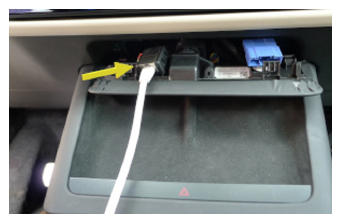 Courtesy of TESLA, INC. Courtesy of TESLA, INC.
|
- Connect the ethernet cable to the laptop.
NOTE:
If a software driver wants to download and configure, follow the prompts to make this happen.
- Perform a Push-Pull-Push check of the connections.
- In Toolbox 3, click the grey circle in the upper right corner to open the connection window.
- From the drop-down, select Connect Locally
, and then click Connect
.
NOTE:
When the connection is successfully established, the grey circle becomes green.
- Click the green circle to close the connection window.
- Return to the procedure that required a laptop with Toolbox 3 connection to the vehicle.